The Epson EcoTank ET-2850 Is the Best Printer for Your Business — If You Know What You're Doing
I made a video about the Epson EcoTank ET-2850 at my six-month mark and I said everything I had to say at that point. But now we're at one year — and I have more to say.
Here's the thing, I did a lot of research before I bought this printer for my art business. I went through every guide, every forum thread, every YouTube video I could find. And still, there were things I had to learn the hard way that nobody talked about in one place. There's no single guide out there that covers everything that can happen with this printer — or really, any EcoTank. So I'm making it. This is that guide, and it's going to be a running list that I update over time as I keep learning.
If you haven't watched my six-month video yet, I still invite you to — a lot of what I covered there is foundational and I'm not going to repeat all of it here. This post is the addition to everything I said in that video. This is the 1-year update.
I purchased the ET-2850 on May 6, 2025. There's a reason everyone chooses an Epson EcoTank when they're starting a business — and there's also a reason so many people are confused by it. Let's get into it.
Just a heads-up: None of my blog posts are sponsored! Every post is honest and straight from the heart, sharing information and value that I believe could genuinely benefit you. This post includes links to my own shop and products, plus a few affiliate links, which means I might earn a small commission if you make a purchase through those affiliate links (at no extra cost to you!). Want to know more about the brands I'm partnered with? Click here to learn more! 😊1. You're supposed to be printing at least once a week — minimum.
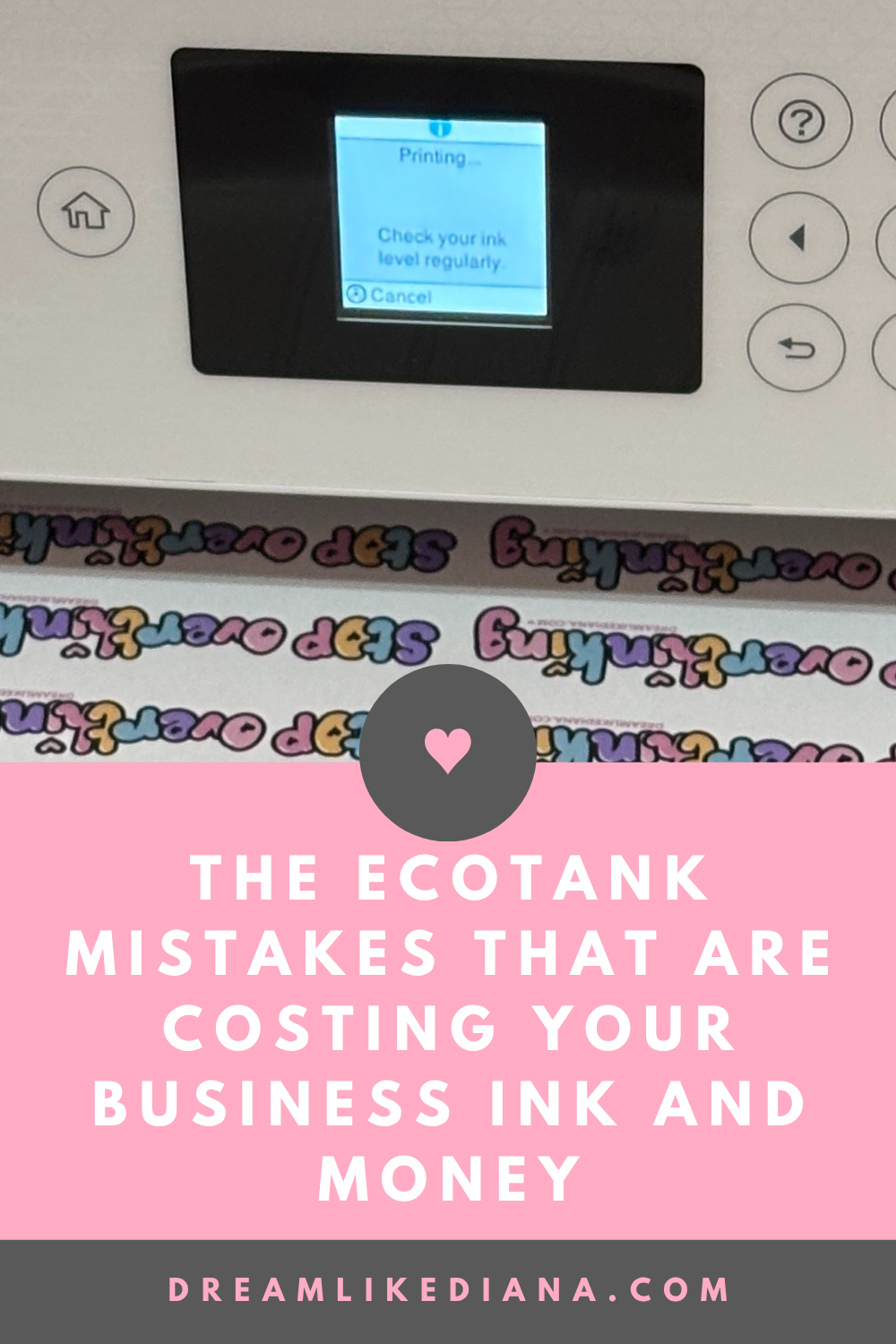
If you let this printer sit, it will let you know. Jennifer Maker has free downloads on her site called Purge Printer Papers, and I'd genuinely recommend forcing yourself to print all five of them every single week at the highest quality setting. If not those, then print and stock your shop. I'll be honest — I did not stock my shop nearly as much as I should have, and I definitely let the printer sit longer than I should have. Which leads directly into the next thing.
2. Head cleanings waste more ink than printing does — and they can make things worse.
This is the one I wish someone had screamed at me before I touched that button. When my cyan ink vanished mid-print (on a Mother's Day card, of all things), I did what the internet told me to do: ran a head cleaning cycle up to three times.
DO NOT DO THIS.
You waste a significant amount of ink, you risk filling up the ink pad in the back faster than intended (replacing that pad yourself runs about $30), and in my case, the head cleaning actually clogged a second nozzle. Cyan and magenta both went down. Getting them unclogged via Jennifer Maker's surge printing method can take 7 to 10 days of printing those pages five times each, in every affected color, at the highest quality setting. I'm on day 3 as I write this. My magenta is printing light yellow while cyan is still gone.
After a lot more research and reading, I found out head cleanings and power cleaning actually shorten the lifespan of your printer. Therefore purge printer sheet printing is a must, but you can also manually remove the air that’s clogged in your nozzles.
Therefore, save yourself the headache — focus on consistent printing, not cleaning cycles. Only consider a head cleaning after at least seven full days of surge printing, BUT ONLY AFTER you do a manual print head cleaning via a print head cleaning kit and even then, treat it as a second to last resort. The last last LAST RESORT is power cleaning. These were the summarized instructions from Jennifer Makers video but also Angie Holden.
I read many comments from users who vouched for this technique, but said it took DAYS of doing it. Like 7+ so…
What’s crazy absurd to me is the amount of printer YouTubers that push you to do head and power cleanings but also “make sure you buy this product!” 😒
3. High quality prints take time — and that's completely normal.
There is nothing wrong with your machine. Print speed and print quality are directly related — the faster it prints, the lower the output quality. Plain paper at the lowest quality setting prints in seconds. Plain paper at the highest quality setting takes about two minutes. High quality specialty paper at the highest setting takes about five minutes per page. If you're using this printer for a business, you want it running at the highest quality setting on the right paper every single time. Yes, it's slower. Yes, it's worth it.
4. It does not print true-to-color right out of the box, and here's why.
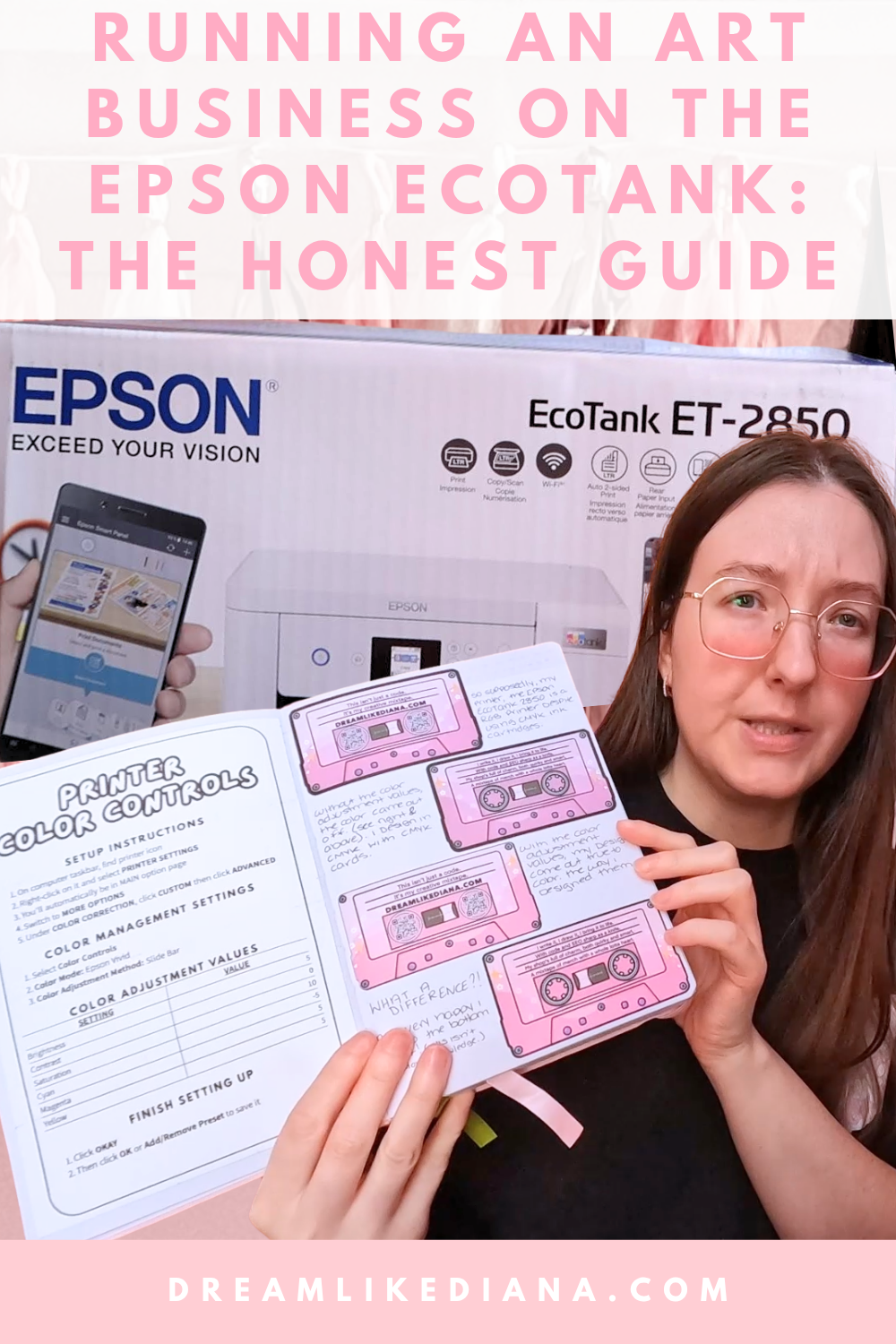
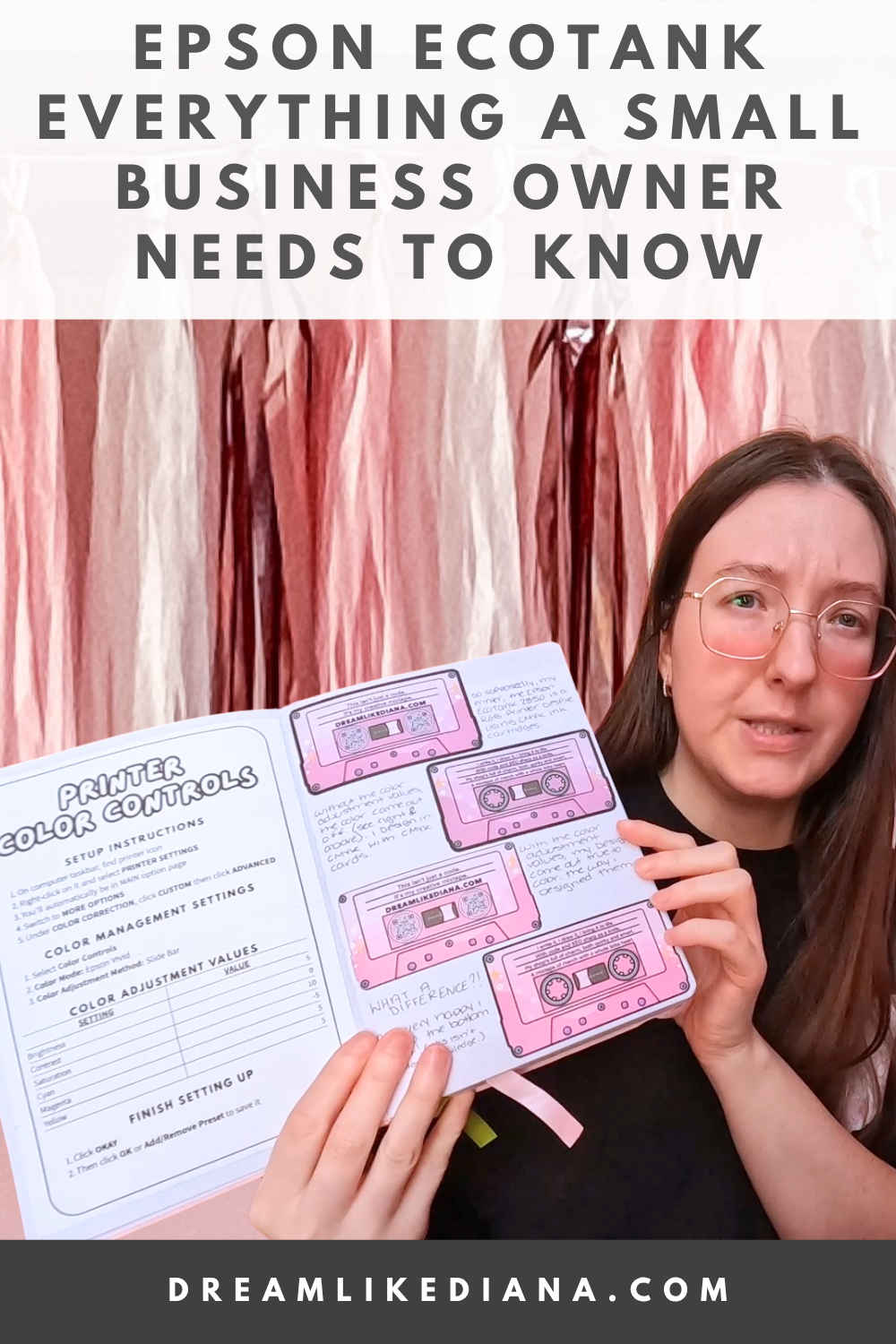
The ET-2850 uses CMYK ink, which is how all professional printing works. But it processes color in RGB — which is why if you're designing in CMYK (which you should be), your colors can come out slightly off until you calibrate your settings. My pink was printing purple the first few times. Once I adjusted my color settings in the print options before sending the file, it corrected. I also use CMYK-specific reference cards to design properly. The settings that work are subjective to your goals, but the fix exists — watch my video at 5:49 onwards and I'll walk you through my exact setup.
5. This is not a home printer — and the reviews reflect that confusion.
It's marketed as a home office printer. I understand why. But a huge chunk of the negative reviews come from people who bought it expecting a lightweight, simple home printer and instead got a machine built for volume, precision, and specialty use. If you want something to print the occasional document, this is genuinely not that printer. If you want a home printer go with a laser printer instead. If you're building a business around printing — stickers, bookmarks, cards, art — it makes a lot more sense.
6. The ink refill bottles are expensive — but you probably won't need them for a while
A full set of four Epson ink bottles runs about $75, and they've been slowly raising that price over time. What most people don't talk about is that there are third-party ink brands made specifically for EcoTank printers that are cheaper and, in some cases, perform just as well or better. Think of it like buying gas — just because Ford made your car doesn't mean you have to use Ford-brand fuel. The caveat: if your printer breaks while using third-party ink, Epson's one-year warranty won't cover it. But realistically, how would they know unless you told them?
Here's the thing though — your printer comes with all 4 bottles included at purchase, and that starter ink is enough for 2 years worth of print jobs. We're talking thousands upon thousands of pages. If you're just starting your business, you likely won't even get close to running out in that time. So the third-party ink conversation is one you probably don't even need to have yet. Cross that bridge when you get there. One more thing — if you convert your EcoTank to sublimation printing, that voids the warranty entirely. I wouldn't do that until you have the money to replace the printer if needed.
7. Don't over-print or over-stock any one design before you have real data.
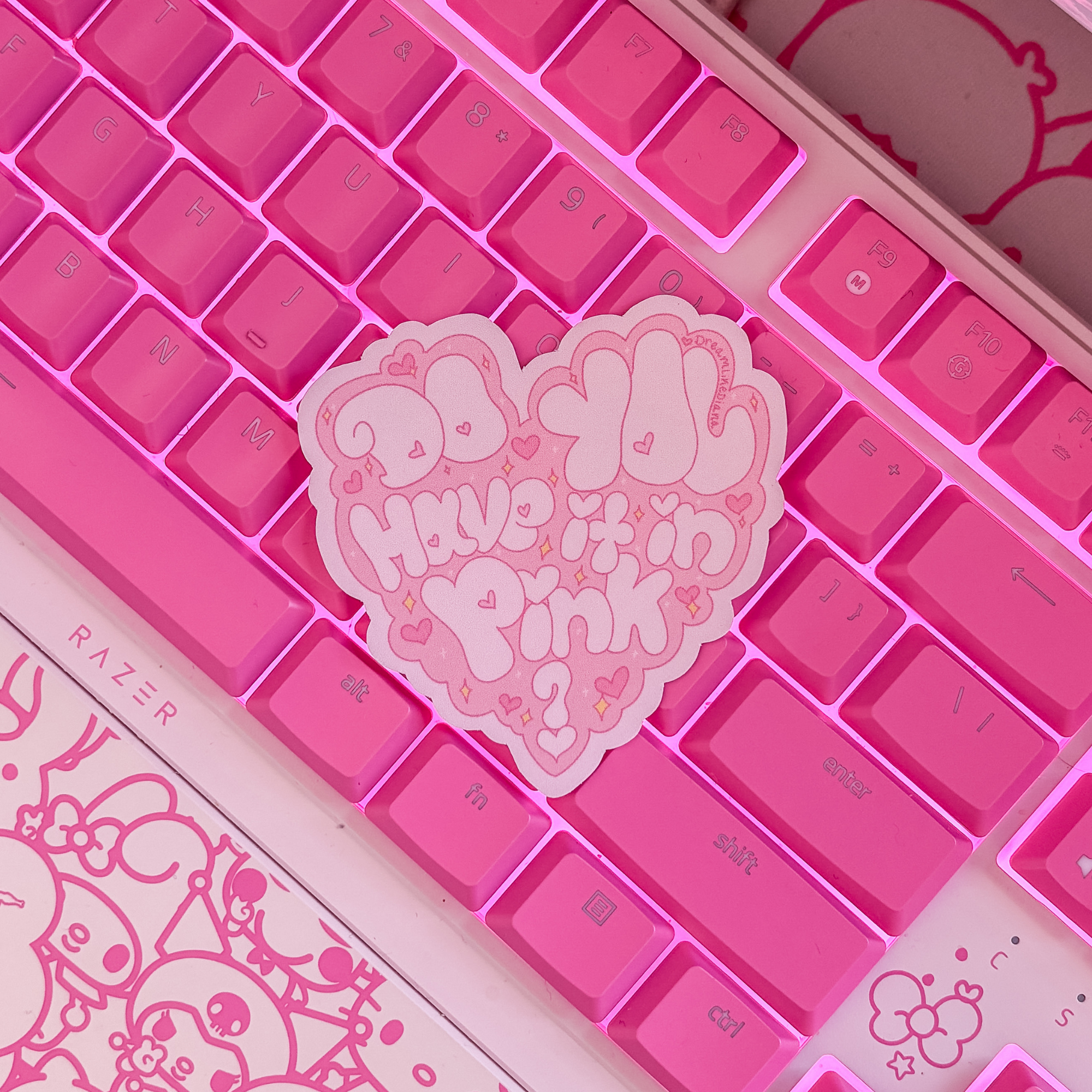
What you think will sell and what actually sells are almost never the same thing. You won't know what moves until you have real numbers to look at — so resist the urge to print and stock heavily across the board right out of the gate. When you have enough data to see what's actually performing, that's when you double down and stock more of those designs. Everything else just floats around until it finds its people. The one exception I'll claim for myself: I knew the Do You Have It In Pink sticker was going to move. And I was right.
8. It's an inkjet, and that matters for what you're making.
Inkjet printers produce vibrant, detailed color that makes designs pop, and they work across a wide range of sticker papers — glossy, matte, clear. There are other printer types out there for art businesses, but the EcoTank checks a specific set of boxes: it runs out of ink less frequently than most, it's compact, it's relatively lightweight, and it has flexibility to grow with your business if you ever want to explore sublimation down the line. That combination is why it keeps coming up in every sticker business conversation.
9. It has a scanner and honestly I forget it exists until I need it.
There's a built-in scanner and it's genuinely useful for things like scanning receipts for business bookkeeping. It's easy to use, easy to navigate, and it shows up right when you need it.
10. The WiFi is strong — the app is not.
I can print from my phone or desktop without the app and have no issues with connectivity. That said, I can only access my highest quality print settings from my PC, not my phone. Phone printing is usually reserved for quick, cheap prints — black and white documents, things that don't need precise color calibration. The Epson app itself is a different story. It almost never finds my printer and I've basically stopped using it. Setup the first time via Bluetooth worked great. After that, I left the app alone.
11. Specialty media goes in one sheet at a time — no exceptions.
For standard documents and personal prints, you can load as many sheets as you need into the rear feeder. But the moment you're printing stickers, envelopes, business cards, graphics for magnetic bookmarks, or anything with thickness or texture, you load one sheet at a time. The rollers and sensors are not designed to handle specialty media in bulk. More than one sheet means potential jams, misfeeds, and uneven prints. Just load one. It takes two seconds and saves a headache.
12. Your paper type setting on your device has to match the paper type setting on the printer.
This is a one-second step that a lot of people skip and then wonder why their colors are off or their paper jammed. The printer adjusts its ink flow and feed speed based on what paper type it thinks it's working with. If what your computer says and what the printer says don't match, things go wrong. Make them match every time.
13. Forget cleaning cycles. Commit to surge printing instead.
In my six-month video I said to only run a cleaning cycle when you notice streaks or missing lines. A year in, I'm revising that:
DONT DO CLEANING CYCLES!
Focus on consistent printing with the purge printer papers. It's slower to fix problems, yes — 7 to 10 days if something goes wrong — but cleaning cycles waste ink, can worsen clogs, and shorten the life of your machine. Only consider one after a full week of surge printing has already happened and the problem hasn't resolved.
14. Setup is easy — but it's not 5 minutes.
I set mine up via Bluetooth on my phone and the app, and the first (and only) time the app cooperated, it worked fine. Setup took me about 45 minutes without overthinking and about an hour once I started second-guessing myself. I'd been used to more complicated systems and kept expecting problems that weren't there. Ignore any video claiming it's a five-minute setup. It takes real time to calibrate your settings and dial in print quality, and that time is worth it.
15. Never force paper into the rear feed.
If the paper isn't going in smoothly, don't push it. I tried this once and it jammed. And when you're in a panic trying to figure out how to unjam it — the answer is to pull the paper out, even though that feels counterintuitive. The printer screen will tell you to do exactly that. Trust it.
16. Get the extended warranty, but make sure you know exactly what it covers before you do.
I got one when I bought my printer because I was told it would either get serviced if something bigger happened to it, or I'd get a new printer for the same price I paid. A year later, I found out it only covers the former, not the latter. And honestly? That stings — especially because I only found out the truth now, one year in, through my partner. He started working at the same store I bought the printer from about six months ago and has already outperformed a lot of their best sellers. And it makes complete sense why. He doesn't push sales. He builds honest relationships with customers and explains exactly what you're getting into before you commit to anything. I met him when he worked at Big SNOW — he wasn't pushy then and he isn't now. So finding out from him that the warranty I paid for doesn't actually cover what I was told it would? That landed differently knowing what an honest sale actually looks like.
Worth noting: this store runs on commission, and while printers don't generate a huge cut, warranty sales are where the real commission percentage is. So take that for what it is.
That said — if you don't have a partner in your corner or a dad who's been a copier and printer technician for over 30 years like I do, an extended warranty still has value. If something mechanically breaks down on a machine this central to your business, having it covered means you're not eating that repair cost out of pocket. Just ask a lot of questions or read the fine print (if any — i didn’t have any) before you say yes so you know exactly what you're getting. Don't find out a year later like I did.
17. Sublimation-converted EcoTanks need more upkeep — and they break faster.
If you want to get into sublimation, you don't need to spend $300+ on an EcoTank to do it. There are models in the $150–$200 range that work fine for getting started. They tend to clog faster and have shorter life spans when converted, but because of the lower price point, replacing them isn't devastating. A lot of people in this space just buy a new one when one wears out. They know the machine well, they know what to expect, and they move on.
18. Inkjet vs. laser — it's not even a competition for color work.
When I bought this printer, my dad was skeptical. He's a toner printer person and had seen inkjets clog constantly in the past (specifically my sister's old one). He had a point about the clogs — but now that I'm dealing with one myself, I understand the real issue: printers are made to be used. They're not meant to sit. And when it comes to color range and print quality for art, stickers, and anything where hues matter, an inkjet wins. Laser/toner printers simply don't produce the same depth and range of color. For what I make and what I sell, there's no substitute.
19. Clogs don’t just happen from infrequent printing — your environment plays a role too.
I’ve already covered how letting your printer sit is the fastest way to end up with a clogged nozzle. But environmental factors apparently have a significant impact as well. Humidity, moisture, a room that’s too dry, even having a fan running near the printer — all of it can contribute. Which is honestly a lot to think about when you’re building a business out of 92 square feet and don’t have the luxury of controlling every variable in your space. That said, my friend ran her printer out of a basement and never had a single clog issue. The key difference between her and me? She printed more consistently than I did. So while environment matters, frequency is still the thing that matters most.
Now that I’ve dealt with a clog firsthand, I’m not spiraling over it anymore. Once I nail down my go-to method for clearing one because it’s totally gonna happen again that’s just what inkjet printers do. But it’s genuinely different every time and for every person. Therefore, I’ll build it into an SOP and store it in my SOP folder like everything else.
If you don’t know what an SOP is, it stands for Standard Operating Procedure. Basically a step-by-step document so you never have to figure the same thing out twice. Think of it like a recipe — you can’t memorize everything, and you shouldn’t have to. I have SOPs for my business and honestly for parts of my personal life too. Do it once, figure out the steps, write it down, never freak out about it again. It sounds tedious but it genuinely changes how you operate. And in business specifically, having SOPs in place sets you up for growth. Your business model has to match your vision — and documented systems are part of how you get there.

All in all,
If you're starting a sticker shop, an art business, a made-to-order operation, or getting into sublimation — bookmark this page. Come back to it. This guide isn't finished and it's not supposed to be. I'll keep adding to it as I learn more, because this printer keeps teaching me things.
And if you haven't already, go watch my six-month YouTube video — it covers the foundational setup, color calibration settings, and everything I learned in those first months of owning the ET-2850. This post is the continuation of that conversation, not a replacement for it.
Save this. Share it with someone who just bought an EcoTank and has no idea what they signed up for. That's exactly who I wrote it for.
Till Next Time!
~Diana